Fix Metallic Voice After Noise Reduction
Aug 11, 2026·Updated Aug 11, 2026·SimpleClean Team

The short answer
A metallic, robotic, watery, or “underwater” voice after noise reduction usually means the processor removed parts of speech along with the noise or was applied too aggressively. Return to the original, use one lighter pass, and compare consonants, breaths, and pauses. SimpleClean’s original/cleaned preview helps you judge the trade-off, but it cannot promise perfect restoration or artifact-free output.
If the recording has steady hiss, hum, fan noise, or room tone, Compare Original and Cleaned audio and compare Original with Cleaned playback before downloading.
Why noise reduction can make a voice sound metallic
A metallic, robotic, watery, or underwater voice is often a sign that the cleanup process removed speech detail along with the background. Speech and noise overlap in time and frequency, so a decision that lowers the noise can also thin vowels, soften consonants, or make quiet transitions move unnaturally. The result may be cleaner on a pause but worse as a conversation.
The first response should be reversible: stop stacking processors, return to the least-processed source, and compare the change on words rather than on a waveform. The video cleanup guide uses the same principle for a broader file workflow: keep the original and approve the result only after listening.
Too much reduction
Aggressive reduction can make a voice sound hollow, phasey, watery, or metallic because the processor is making a stronger distinction between “voice” and “noise” than the recording supports. A quiet room does not prove that the result is better. Listen to s, t, k, and p sounds, along with breaths and word endings, where the change can be easiest to hear.
Audacity's noise-reduction manual explains why the lowest useful amount is a safer goal than chasing total silence. The exact control names in a desktop editor do not describe SimpleClean's interface; the transferable lesson is to audition the result and back off when speech loses character.
A poor noise profile or changing noise
A profile taken from a moment that does not represent the recording can teach a processor the wrong thing. A fan may change speed, a speaker may move, or speech may be present in the sample. Changing noise is harder to separate from a voice than a stable bed, so the safer choice may be a lighter pass, manual editing, or a better source.
SimpleClean is designed for hiss, hum, and steady room tone rather than a promise about every noise pattern. Its Original/Cleaned preview is useful precisely because the same input can sound different to different listeners and in different contexts.
Stacked processing and repeated encoding
A voice can become brittle after several rounds of denoise, filtering, compression, or format conversion. When the artifact appears, return to the source and make one controlled test. Keep the intermediate versions, but do not keep feeding the newest result into another automatic pass without a reason you can hear and explain.
Identify the artifact by ear
“Metallic” is a useful warning word, not a laboratory diagnosis. Name the texture you hear and the passage where it appears. That makes it easier to choose the next step and avoid confusing a denoise artifact with echo, reverb, a microphone problem, or a codec issue.
Metallic vowels and robotic tone
A metallic voice may have a hard edge on vowels or a synthetic ring that was not in the source. A robotic voice can lose small changes in pitch and emphasis, making the speaker feel emotionally flat. Compare the same phrase in the original and cleaned versions at a comfortable level, then check whether the change is present in the words or only in the silence around them.
Watery consonants, pumping, and chopped breaths
Watery consonants can sound like they are bubbling or moving under a thin layer of water. Pumping makes the background rise and fall around speech. Chopped breaths and abrupt silence can make a phrase feel edited even when no edit was intended. These clues usually mean the process has started making audible decisions about speech detail.
Mark one or two examples and stop processing while you investigate. The alternative noise-reduction techniques page explains why a gate is not the same as a denoise process and why chopping quiet speech is not a general repair.
Hollow voice versus actual echo or reverb
A hollow voice can come from room reflections, not from a denoise artifact. Listen for a repeat after a word or a blended decay around every syllable. The echo versus reverb diagnostic explains how to make that distinction. More noise reduction is not a room-treatment control.
First aid: return to the natural source
The fastest recovery is often to undo the decision rather than add another one. Find the original or the least-processed version, verify that it is the right recording, and listen to the passage that exposed the problem. Treat that file as the reference for every subsequent trial.
Stop stacking processors
Pause denoise, gating, heavy compression, and repeated exports while you diagnose the voice. Write down what was applied if you know it, then make a copy of the source. A short, labeled test is more informative than a long chain whose individual changes you can no longer separate.
Keep the original and make one lighter test pass
Make one lighter trial from the original when a steady hiss, hum, or room tone is still worth reducing. The lighter version does not need to be perfect; it needs to tell you whether the trade-off is moving in the right direction. Compare the same pause, consonant-rich sentence, vowel, and breath each time.
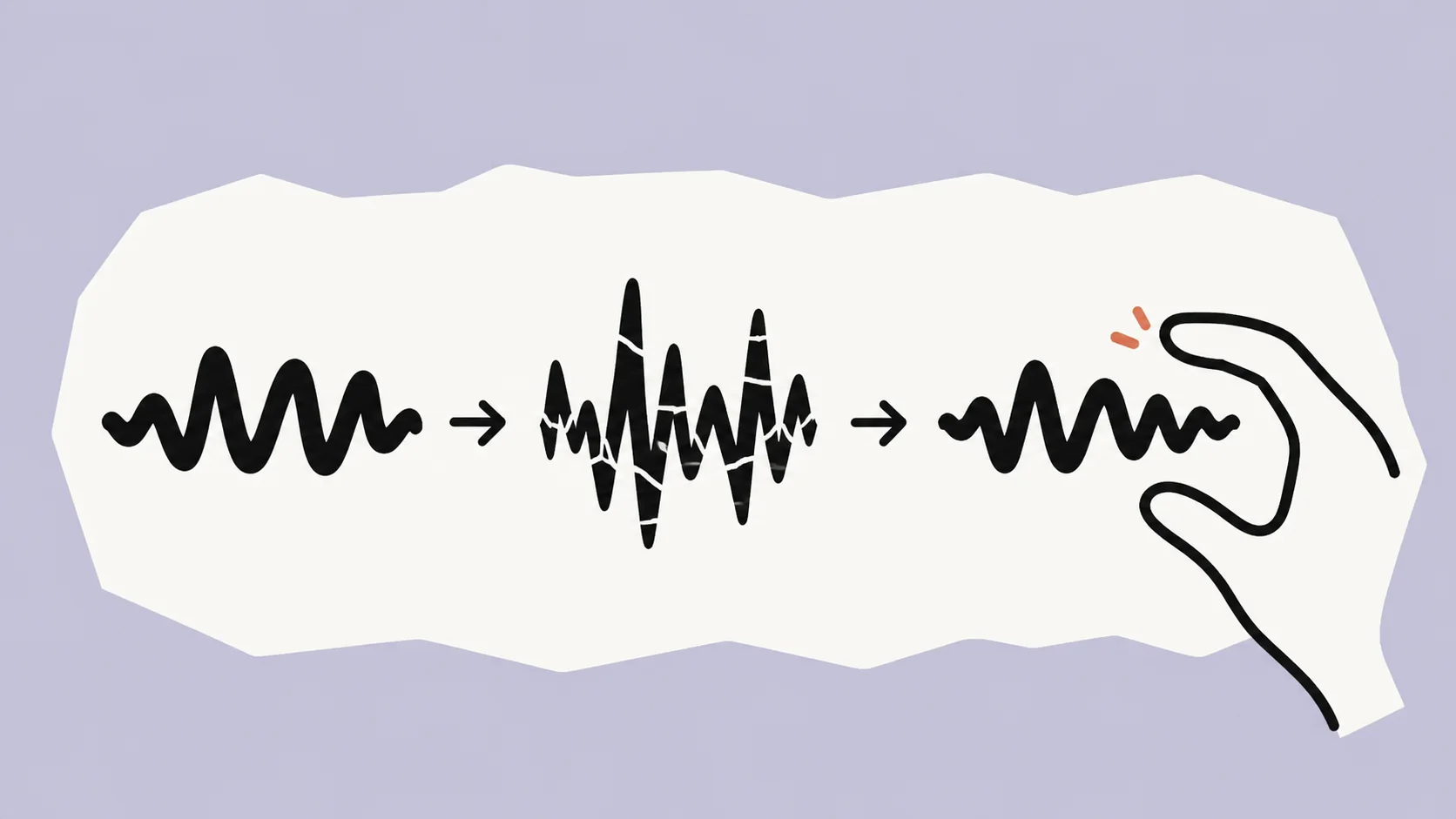
Compare consonants, breaths, pauses, and quiet sections
The best version often has a modestly quieter pause and much more natural speech. Check the start of words, sibilants, breath timing, and the end of phrases. Listen to the whole message at least once after the close comparison because an artifact can appear only in a later section where the noise changes.
A safer order for cleanup
A safe workflow moves from source preservation to diagnosis, one light change, and a full review. It avoids pretending that every defect belongs to denoise. If the file needs editing, EQ, compression, loudness work, or re-encoding later, make those decisions only after you know which voice you are keeping.
- Identify the dominant problem and keep the least-processed source.
- Address an isolated issue only when the chosen workflow supports it.
- Apply the lightest useful background-noise pass to one copy.
- Review speech before adding EQ, compression, loudness, or another export.
- Stop and return to the source when the voice sounds less natural.
Address isolated hum or clicks when the workflow supports it
Not every isolated problem belongs in the same tool. A click, bump, or short edit may be easier to handle manually than with a process designed for a continuous noise bed. If the file contains both a stable hum and an isolated event, separate those decisions and review the result after each one.
This keeps the recovery path legible. When a change sounds worse, you know which decision to undo. It also prevents a single tool from being described as a complete restoration workflow when it only addresses one part of the recording.
Apply the lightest useful denoise pass
The target is a less distracting bed, not silence. For a SimpleClean trial, use one audio or video file at a time; the default maximum is 500 MB and 15 minutes. Supported inputs include MP3, WAV, M4A, AAC, FLAC, OGG, OPUS, MP4, MOV, MKV, WebM, and AVI; audio output is MP3 and video output is MP4. Original/Cleaned playback lets you compare the source with the result when the target is steady hiss, hum, or room tone, then choose the version that preserves the speaker.
Review before EQ, compression, loudness, or re-encoding
Once the voice is chosen, continue in the tool suited to the next job. Review speech before making it louder or brighter, because later processing can hide the moment an artifact became worse. Keep a clear version name and do not discard the original until the final use is approved.
A remote interview workflow is a useful example: source selection and speaker-track choices happen before a one-file background-noise test. The same order protects a solo voice recording from losing its only natural reference.
When more denoise is the wrong answer
Some defects become more obvious after denoise because the background has changed, not because the process caused them. Echo, reverb, wind, overlap, clipping, dropouts, and VoIP damage need their own diagnosis. If a word is missing or clipped, a quieter bed cannot recreate it.
Echo, wind, overlap, clipping, dropouts, and VoIP damage
A room reflection can make a voice hollow; wind can overwhelm a microphone in bursts; overlap can hide one speaker behind another; clipping changes peaks; dropouts remove pieces of time; and a call codec can leave a brittle texture. These conditions may coexist with hiss or hum, but they are not promises to attach to the background-noise pass.
When re-recording is more honest than restoration
Re-record when the message is short, the key words are clipped or missing, the artifact is present throughout, or the only available source has already gone through several lossy exports. This is not a failure of patience; it is a recognition that cleanup cannot invent a natural consonant or a clean take that was never captured.
If a re-record is impossible, choose the version that communicates best, disclose the limitation when the context requires it, and keep the source. A clear imperfect recording is often more trustworthy than a silent but synthetic one.
Use SimpleClean's A/B preview as a stop signal
SimpleClean's Original/Cleaned preview is most useful after an artifact has appeared: it lets you compare the least-processed source with a new one-file trial. Upload only when the remaining problem is plausibly steady hiss, hum, or room tone. If Cleaned sounds less natural, stop and keep Original.
Frequently asked questions
Why does my voice sound metallic after noise reduction?
The processor may have removed speech detail along with the noise, especially when the reduction was strong or the noise changed over time. Compare the processed file with the original on consonants, breaths, vowels, and pauses. If the voice is less natural, return to the source instead of stacking another pass.
How do I fix a robotic or watery voice?
Stop processing, find the least-processed source, and make one lighter test only if steady hiss, hum, or room tone still needs attention. Compare the same speech passages and keep the more natural version. A new recording or a different editor may be more suitable when the source is already damaged.
Should I use more or less noise reduction?
Use the lightest amount that makes the background less distracting while preserving speech. There is no honest setting that works for every recording. If the cleaned voice has metallic, watery, pumping, or chopped qualities, less processing or the original source is the safer choice.
Can a noise gate fix a damaged voice?
No. A gate changes when quiet material is allowed through; it is not the same as repairing speech detail or a denoise artifact. It can also chop breaths or word endings if used poorly. Diagnose the source and compare a lighter, reversible workflow instead.
Is metallic voice the same as echo or reverb?
No. Metallic or watery texture often appears after processing, while echo is a recognizable delayed repeat and reverb is a blended room decay. Compare the original to find when the sound appeared, then use the echo versus reverb guide for the acoustic branch.
Can SimpleClean reverse denoise artifacts?
No tool should promise that from a processed file. SimpleClean can process one original or working file for steady hiss, hum, or room tone and lets you compare Original with Cleaned. Keep the least-processed source; it does not provide artifact-repair controls or guarantee reversal.
When should I re-record instead?
Consider re-recording when important words are clipped or missing, the artifact is present throughout, the source has several stacked exports, or the message is short enough to capture again. If re-recording is impossible, keep the most natural source and state the remaining limitation honestly.
Sources and Further Reading
These official or primary references support the platform, format, and audio-production claims in this guide. Product behavior and platform interfaces can change, so the linked documentation remains the authority.
- Noise reduction — Audacity Manual. Explains noise-profile use, the lowest useful reduction idea, and the risk of audible processing artifacts.
- Alternative noise reduction techniques — Audacity Manual. Distinguishes a noise gate from denoise and explains why quiet speech can be chopped.
- Noise reduction and restoration effects — Adobe Audition. Supports balancing constant-noise reduction against the quality and naturalness of speech.
- Denoiser controls — Apple Final Cut Pro. Shows how reduction, threshold, and smoothing choices affect audible results in an editor; these are not SimpleClean controls.
Compare before you commit
Keep the least-processed source, upload one file at SimpleClean, and compare Original with Cleaned before downloading. Stop if the cleaned voice is less natural; this workflow can help you judge a steady-noise trade-off, but it cannot reverse an existing artifact or replace a re-recording.
Compare Original and Cleaned audio