Clean Remote Interview and Zoom Recordings
Aug 11, 2026·Updated Aug 11, 2026·SimpleClean Team
The short answer
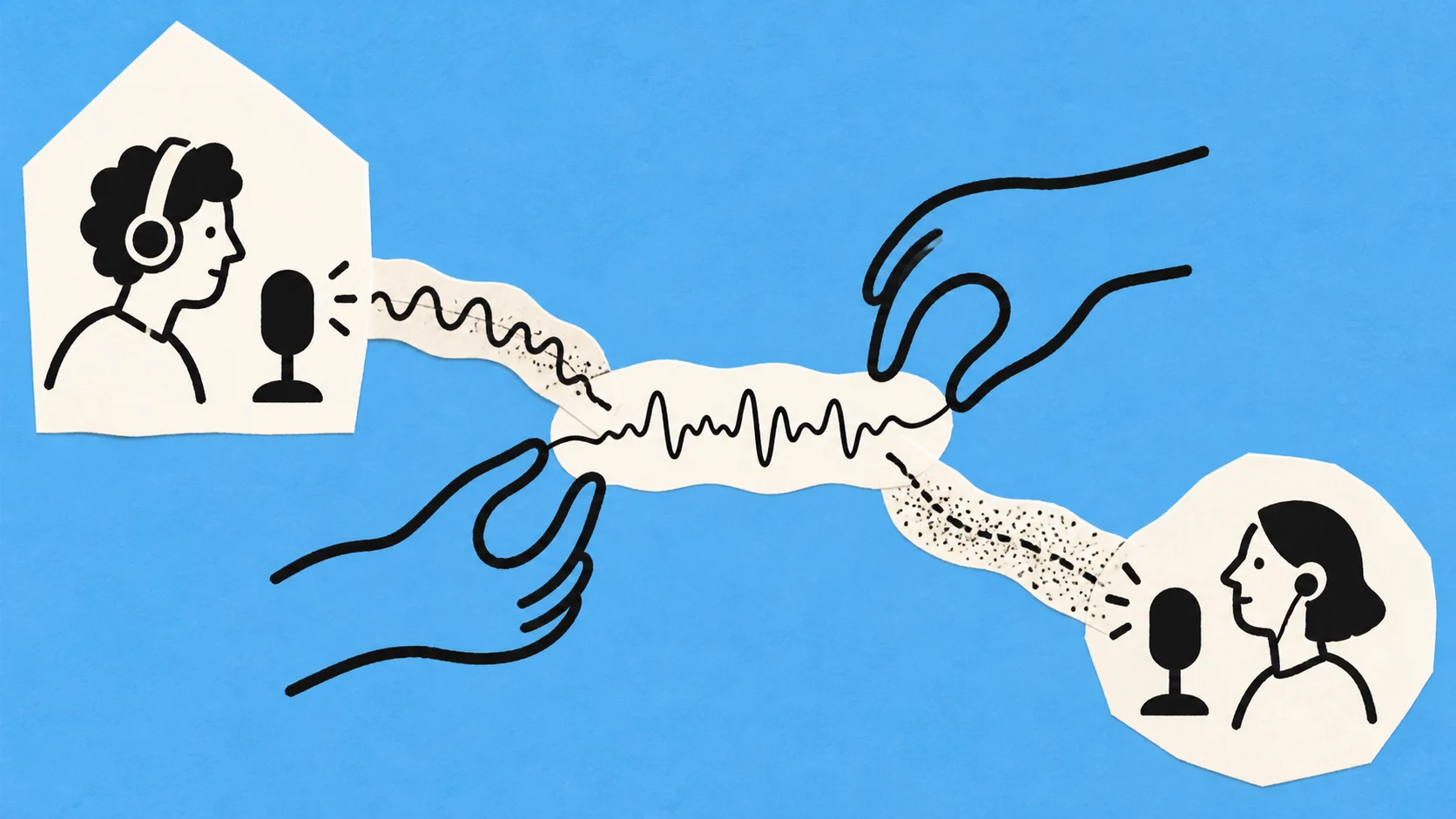
To clean a remote interview or Zoom recording, preserve the original and use separate participant tracks when available. Clean the exported MP4 or audio file for steady hiss, hum, or room tone, then compare it with the source. SimpleClean processes one file at a time and lets you compare original and cleaned playback before downloading.
If the recording has steady hiss, hum, fan noise, or room tone, Clean a remote interview recording and compare Original with Cleaned playback before downloading.
Separate live Zoom settings from post-call cleanup
Zoom settings used during a call and the file you edit afterward solve different problems. Noise suppression, echo cancellation, microphone testing, and professional audio options affect capture or the live path. After the call, you still need to choose the best recording, preserve any separate tracks, and inspect the exported audio in context.
Zoom's audio-settings documentation is the current source for labels and controls. Account type, client version, and updates can change what you see, so use the official page rather than promising a specific control to every participant.
What suppression, echo cancellation, and mic testing do
Before a call, microphone testing can expose a wrong input or a level problem. Noise suppression and echo cancellation are intended to help the call sound usable while it is happening. They do not make a poor room, a distant microphone, or a network interruption disappear from every recording export.
Professional audio settings can favor a more deliberate capture path when the participants understand the trade-off. The Zoom professional-audio guide should be checked before the next interview, especially because labels and availability can change.
What can still be improved after the call
A post-call file may still contain a constant fan, HVAC bed, electrical hum, or room tone. Those are reasonable candidates for a background-noise test. The file may also contain clipped speech, crosstalk, network dropouts, codec texture, or room reflections. Those defects need different decisions and should not be presented as automatic denoise fixes.
The podcast cleanup guide is useful after you have chosen the source because it separates a denoise pass from editing, speaker balance, and final delivery checks. A remote interview needs the same separation, with extra attention to track architecture.
Choose the best source file
Before you upload anything, inventory the files created by the call. Keep the original recording, check its duration, and determine whether the audio is embedded in an MP4, saved as an M4A, or available as separate participant files. The best source is the clearest file that still preserves the choices you may need during editing.
Zoom's audio and video format guide is the authority for current recording formats and options. Do not infer that a particular export contains separate speakers merely because the call had two participants.
MP4, M4A, and separate participant files
An MP4 may be the right choice when you need the video and its synchronized audio. An M4A can be convenient when you need audio for an edit. Separate participant files are valuable when one speaker has a fan or room problem and the other does not, because you can review each source before creating a final mix.
SimpleClean accepts MP4 and M4A as relevant inputs, but the product does not create participant separation. Upload the file or track you intentionally selected, not a mixed export you expect the service to unmix later.
Why separate tracks are preferable when one speaker has a problem
A mixed interview combines both voices, rooms, and defects. Cleaning it as one file can reduce a shared background bed, but it cannot give you independent decisions for each participant. If the tracks are separate, keep them separate in the editor while you inspect levels, timing, overlap, and room character.
That does not mean every interview needs a complex edit. It means you should preserve optionality until you know what the recording contains. Once tracks are collapsed, a speaker-specific noise problem is harder to isolate and a bad choice is harder to reverse.
Keep the original and do not collapse tracks prematurely
Make a working copy and use clear names for the source, test, and chosen result. Store the original participant files even after you create a mix. This protects the interview from a cleanup decision that helps one passage but harms another, and it makes it possible to answer questions about what was actually recorded.
If only a mixed file exists, be honest about that boundary. You can test the whole file for steady hiss, hum, or room tone, but you cannot claim that a one-file process will rebalance the speakers or reconstruct a missing participant track.
Clean the recording online
After source selection, run one controlled test. SimpleClean processes one uploaded audio or video file per run, with a default limit of 500 MB and 15 minutes. Upload an exported MP4, M4A, MP3, or one participant track, then compare the result with the same original passage.
The point of the workflow is not to make the call sound like a different production. It is to decide whether lowering a steady noise bed makes the interview easier to follow without making either speaker less natural. Keep the cleanest source and the comparison available until the edit is approved.
Upload one exported file or one participant track per run
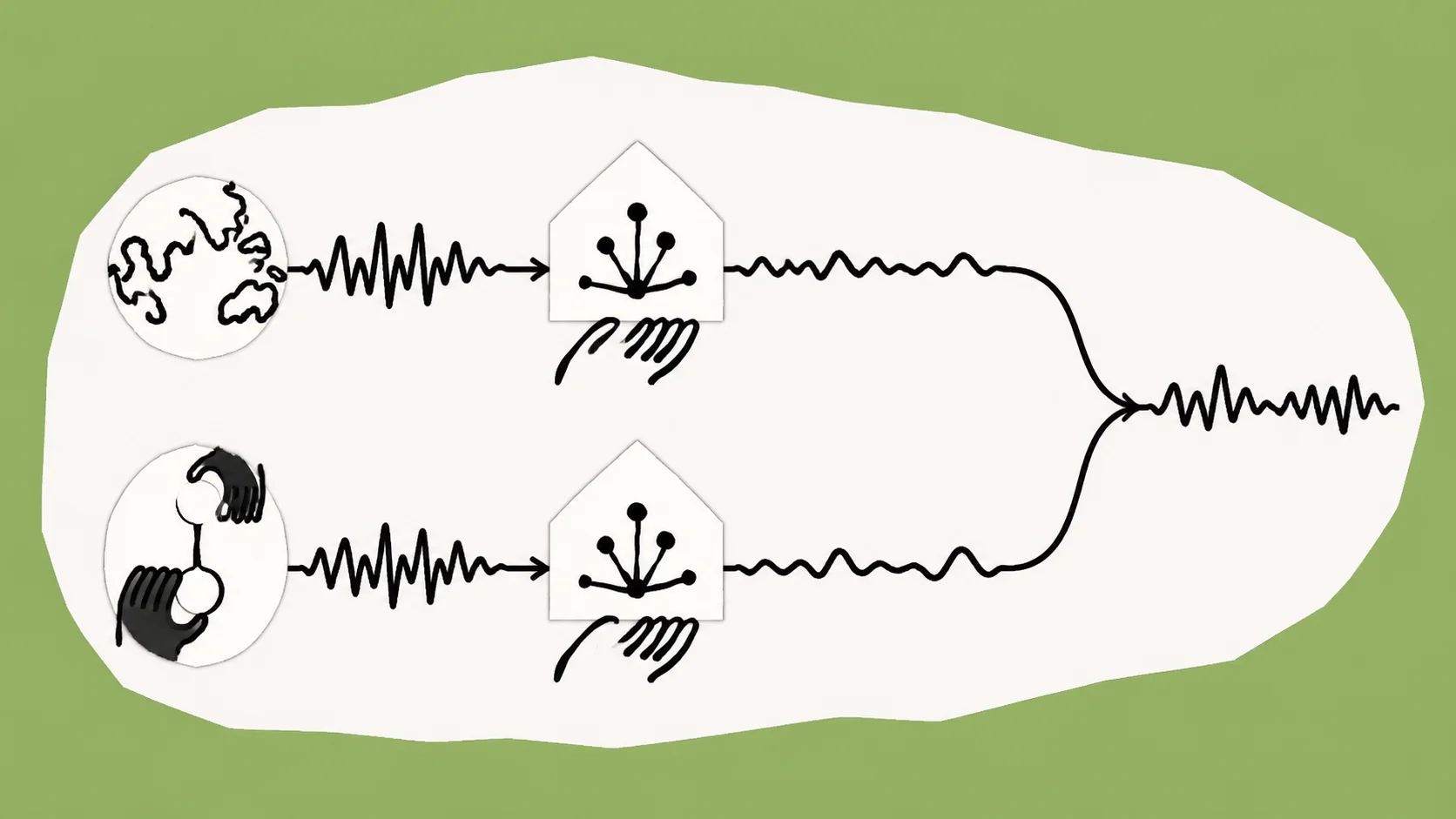
Choose the source that matches the decision you are making. If one participant has a constant fan, test that track. If you need to check sync with the picture, test the MP4. If the final edit is audio-only, an M4A or MP3 may be the practical working file. One file at a time keeps the before-and-after judgment clear.
SimpleClean returns MP3 for audio and MP4 for video. It does not separate, reassemble, or rebalance Zoom participants. Those decisions remain in the editor where you can hear both people together and check the final picture relationship.
Compare the worst pauses and speech passages
Listen to the quietest pause from each speaker, a normal sentence, and a moment where both voices approach each other. Check sibilants, breaths, word endings, and the transition between speech and silence. If the cleaned file lowers the fan but makes a participant metallic or distant, keep the original track and reconsider the process.
A call can sound better in one speaker's close-up and worse in the shared mix. Review the intended publishing sequence, not only the isolated preview. The metallic voice guide explains why a less processed, more natural source can be the correct stop signal.
Download the cleaned MP3 or MP4 after a sync check
When the cleaned version wins the comparison, download it and check the complete file. For MP4, watch the start, end, and several speaker changes for sync. For audio, confirm that the beginning and ending are present and that the file opens in the editor you will use. Keep the source until the final mix is accepted.
Do not describe the output as a repaired interview simply because the fan is quieter. The file may still need speaker choices, edits, room treatment, loudness review, or a request for a better take. A clean handoff states what was changed and what remains unresolved.
Know the limits of post-call denoise
Steady hiss, hum, fan, and room tone are the reasonable candidates for this workflow. Overlap, clipping, dropouts, codec damage, echo, reverb, and a fundamentally tinny microphone capture are different issues. A denoise pass can be useful when the call has mixed defects, but it should not be sold as a complete repair for them.
If the recording loses words, clips on peaks, or contains a network gap, return to the source and ask whether another export or a re-recording is possible. More cleanup cannot recreate information that was never captured. The echo versus reverb guide covers the room-reflection branch.
Steady hiss, hum, fan, and room tone
A constant background bed tends to remain audible during pauses and across several sentences. That is the best signal that a test may be worthwhile. Use Original/Cleaned playback to decide whether the improvement is large enough to keep, and check both participants because the same process can affect voices differently.
Overlap, clipping, dropouts, codec damage, and reflections
Overlapping speech is a content mix, not a silent noise bed. Clipping removes the shape of a peak, dropouts remove time or words, and codec damage can create a brittle or watery texture. Echo and reverb describe reflections. Mark these issues in the edit and choose a targeted action instead of implying that one upload fixes them all.
Improve the next remote interview
The most useful improvements happen before the call is over. Ask each participant to test the intended microphone, use headphones when appropriate, reduce avoidable fans, and record separate tracks where the current Zoom setup supports them. Save a short test and listen before the real interview begins.
Zoom's official guides are the right place to re-check current suppression, echo-cancellation, and professional-audio labels. The goal is not to reproduce a fixed interface from a blog post; it is to make an informed capture decision for the account and client version actually in use.
- Test each microphone and confirm the selected input.
- Use headphones when they prevent speaker sound from returning to the microphones.
- Record separate participant tracks when available and preserve them after the call.
- Keep a short test passage so a later cleanup decision has a stable reference.
Final publishing checklist
Before publishing, listen to the full edited interview with the picture if one exists. Check the source choice, speaker balance, overlap, sync, transitions, and the worst background section. A background-noise improvement is worth keeping only when the whole interview remains understandable and believable.
- The selected export or participant track is documented and backed up.
- The steady background is less distracting without a new metallic or watery voice.
- Speaker choices and level changes were made in the editor, not assumed from denoise.
- Overlap, clipping, dropouts, codec damage, echo, and reverb are labeled honestly.
- The final audio and video are reviewed together before delivery.
Frequently asked questions
Can I clean a Zoom MP4 or M4A online?
Yes. SimpleClean accepts MP4 and M4A as supported relevant inputs, subject to the default 500 MB and 15-minute limit. It processes one file at a time and returns MP4 for video or MP3 for audio. Compare the result with the original before using it in the edit.
Should I use separate participant tracks?
Use them when the recording setup provides them and you need speaker-specific choices. Keep the tracks separate in the editor until you have checked noise, levels, overlap, and timing. SimpleClean can process one selected track, but it does not separate or reassemble participants.
If Zoom already reduced noise, should I clean the recording again?
Only test it when a steady hiss, hum, fan, or room bed is still distracting. Compare the Original and Cleaned versions on the worst passages and stop if the voice becomes less natural. Live Zoom settings and post-call processing are different decisions.
How can I improve tinny remote-interview audio?
First determine whether the thin sound comes from the microphone, a call codec, clipping, or over-processing. A background-noise pass may reduce a steady bed, but it does not promise to rebuild a tinny capture. Return to the least-processed source and request a better take when that is possible.
Can SimpleClean remove Zoom echo?
Do not assume it can. SimpleClean targets steady hiss, hum, and room tone and does not provide separate echo or reverb controls. If echo is the dominant problem, diagnose the room or call setup and use a workflow intended for reflections.
What about people talking over each other?
Overlapping speech is a mix and editing problem, not steady background noise. Separate tracks may give an editor more options, but SimpleClean does not unmix participants or reconstruct words hidden by overlap. Keep the source and make a deliberate editorial decision about the passage.
Sources and Further Reading
These official or primary references support the platform, format, and audio-production claims in this guide. Product behavior and platform interfaces can change, so the linked documentation remains the authority.
- Changing audio settings — Zoom Support. Supports current context for noise suppression, echo cancellation, and microphone testing; labels can change.
- Professional audio settings — Zoom Support. Explains suppression modes and professional capture options without implying they are post-call repair controls.
- Audio and video file formats — Zoom Support. Provides official format and participant-file context for choosing a post-call source.
- Repair dialogue — Adobe Premiere. Supports separating noise, hum, reverb, and dialogue review in post-production.
Compare before you commit
After choosing the clearest export or one participant track, upload that single file at SimpleClean and compare Original with Cleaned. Keep the source and stop if the issue is overlap, clipping, dropouts, codec damage, echo, or reverb rather than steady hiss, hum, or room tone.
Clean a remote interview recording