Clean Podcast Audio Online
Aug 11, 2026·Updated Aug 11, 2026·SimpleClean Team
The short answer
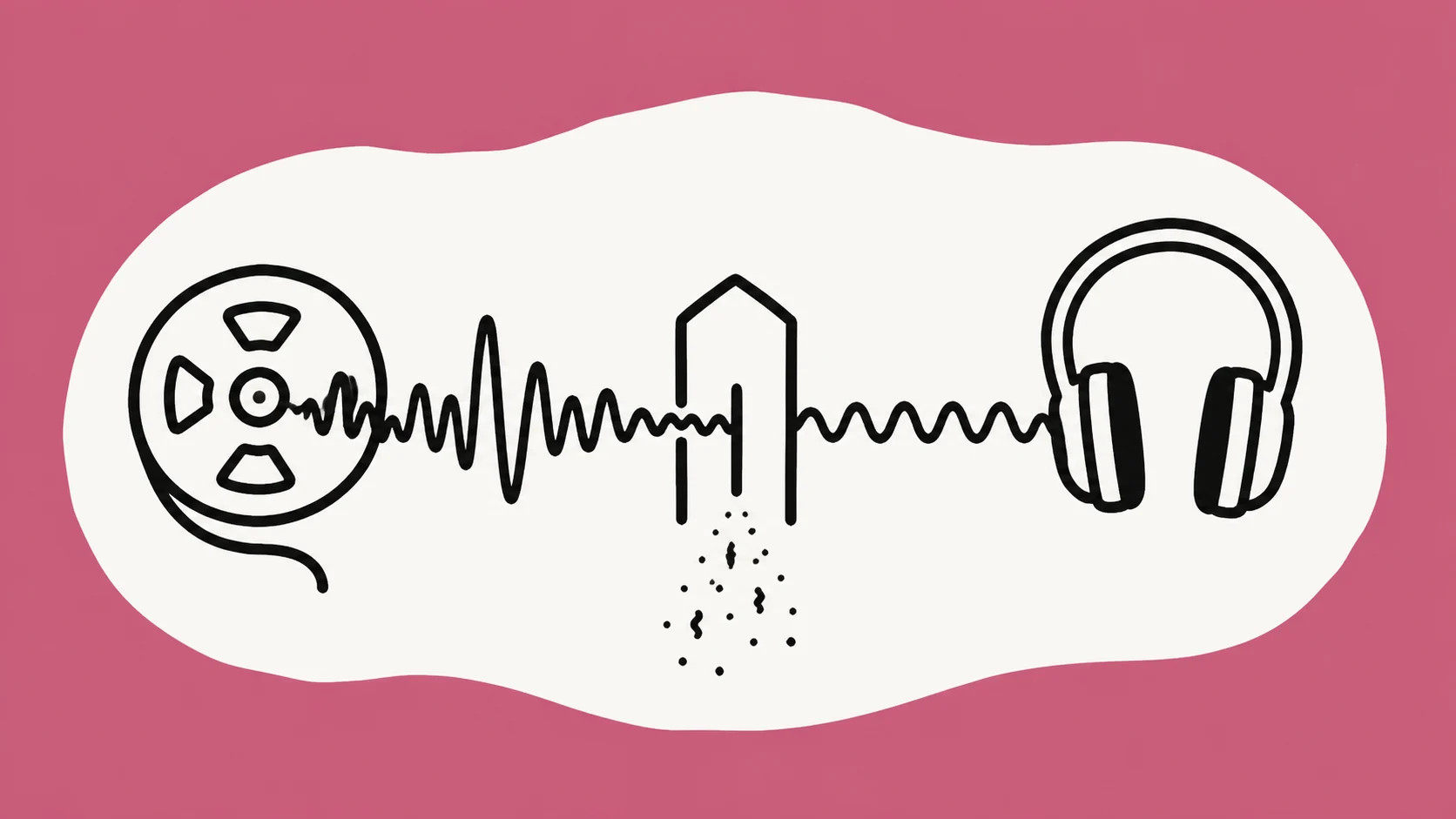
To clean podcast audio online, start with an original MP3, WAV, M4A, AAC, FLAC, OGG, or OPUS file and identify steady hiss, hum, or room tone. Use a denoise pass, compare original and cleaned speech, then handle editing, speaker leveling, loudness, metadata, and platform export separately. SimpleClean processes one file at a time and returns cleaned audio as MP3.
If the recording has steady hiss, hum, fan noise, or room tone, Clean podcast audio with SimpleClean and compare Original with Cleaned playback before downloading.
Podcast cleanup is not the whole production step
A podcast cleanup pass has a narrow but useful job: reduce a distracting, fairly steady background bed so the spoken material is easier to work with. It does not decide which pauses to cut, make two microphones match, set your final loudness, or prepare every field required by a hosting platform. Keeping those jobs separate makes the result easier to judge.
Start with the best original recording you have. A clean source gives you options later, especially if a denoise pass changes a breath, consonant, or quiet room detail that matters to the episode. The metallic-voice guide is useful when a processed voice starts sounding less natural.
What a background-noise pass can do
A constant fan, HVAC bed, electrical hum, or broadband hiss is a reasonable candidate. It remains audible between sentences and gives the process a recurring pattern to reduce. You should still listen after processing: removing too much of the bed can make the voice feel thin or leave an obvious artificial texture around words.
The useful question is not whether the waveform became visually quieter. Ask whether a listener can follow the words with less distraction and whether the speaker still sounds like the source. For a podcast, natural pauses and breaths are part of the performance, not waste that should disappear automatically.
What still needs editing or delivery review
Cutting false starts, arranging segments, removing a cough, and choosing what stays in the story belong in an editor. If guests were recorded on different microphones, you may need to make considered changes to their relative levels. Loudness, true-peak behavior, metadata, and final encoding also need a review against the destination platform's current instructions.
Do not describe a cleaned MP3 as the finished episode simply because the background is quieter. It may be a useful working file, but a publishing workflow still needs its own listen from beginning to end. Apple’s audio requirements are a current example of why the destination check belongs after cleanup.
Decide whether the episode is a good cleanup candidate
Use a short, representative sample before processing a long episode. Find a quiet pause, a normal sentence, and a section where the speaker becomes more energetic. If the same hiss or hum is present in all three, a steady-noise pass may help. If the problem changes every few seconds, make a note that the source may need manual editing instead.
Constant hiss, HVAC, fan, and electrical hum
Hiss is a broad wash; a hum often has a more recognizable pitch; HVAC and fans can combine low movement with a wide noise bed. They can coexist with the voice without changing the story of the episode. Capture the worst pause and the worst speech passage so you can make the same comparison after processing.
If the room tone is mild, retain some of its natural character. A completely unnaturally silent gap can make edits more obvious, while a small reduction may be enough to keep the listener's attention on the conversation. The right choice depends on the recording and the audience, not on a target number.
- Mark where the noise is steady and where it changes.
- Check whether either speaker has a separate source file.
- Keep a source copy before making a new export.
Clipping, crosstalk, clicks, and room reflections
Clipping is a recording-level problem, while crosstalk and overlapping speech are content problems. A click may be a short event. Echo and reverb are reflections that change the space around speech. A general noise pass should not be presented as a complete answer for those defects. The echo versus reverb guide explains the acoustic branch.
When a guest sounds distant or hollow, first determine whether the issue is a room reflection, a microphone placement choice, a call recording, or a constant noise bed. That diagnosis will tell you whether to edit, request a better source, or test a cleanup pass. It is often more efficient than stacking several unreviewed processes.
How to clean podcast audio online
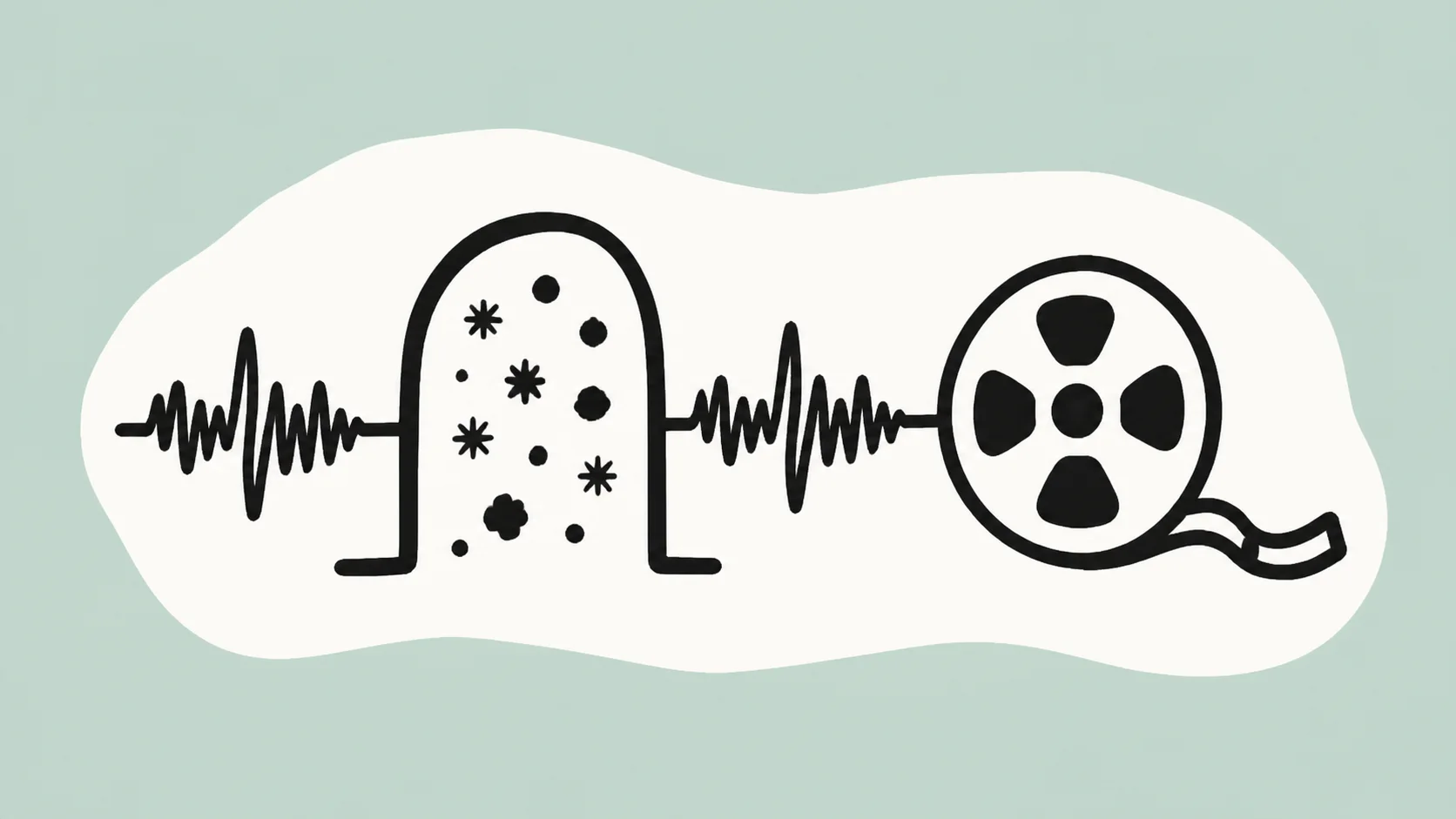
A repeatable online workflow can reduce friction when you do not need a multitrack editor for the first pass. Preserve the original, upload one supported file, wait for the result, and compare the same passages. The comparison should decide whether the file moves forward; the fact that processing completed is not itself a quality judgment.
Preserve the best original or export
If you have a WAV or another high-quality source, keep it as your archive even when you test an online workflow. If the source you have is MP3, do not repeatedly convert it before you start. Label the processed result as a new version and keep the relationship clear so you can return to the source if the voice changes.
For a remote show, decide whether you are cleaning a finished mix or one participant track. If separate files exist, a track-by-track workflow may give you more control in your editor. SimpleClean handles one file at a time; it does not join tracks or rebalance a conversation for you.
Upload a supported audio file
SimpleClean accepts MP3, WAV, M4A, AAC, FLAC, OGG, and OPUS audio inputs. The default limit is 500 MB and 15 minutes per file. A long episode may need to be reviewed in sections or handled in an editor first, but keep the original complete recording available for the final production workflow.
The cleaned audio result is MP3. That makes it convenient to audition or use as a working file, but it does not replace your responsibility to choose the final edit and verify the destination's current requirements. The Apple episode-creation guide describes the later submission context.
Compare noisy and quiet passages
Listen to the pause first, then the sentence with the clearest consonants, then the most expressive passage. Check the beginning and end of a phrase for pumping or a sudden change in room tone. Compare both the host and guest when the file contains more than one voice. A result that helps one person but harms another needs a more careful decision.
Use a comfortable playback level and the device your audience is likely to use. If the cleaned file sounds more distant, watery, metallic, or tiring, keep the original. More reduction is not automatically a better podcast, and a second pass can make the cause of a change harder to trace.
Download the cleaned MP3 after a natural-voice check
Download only after the comparison tells you that the cleaner file is preferable for the next stage. Listen to enough of the episode to catch a change in noise character, a clipped transition, or a section where a voice becomes less intelligible. Then bring the chosen version into the editor where the story and speakers will be finalized.
If the episode is headed to a platform, make a final pass after editing rather than assuming the denoise result is ready to submit. The Apple Podcasts audio requirements are subject to the platform's current guidance, so use the official page as the authority at delivery time.
What to do after denoise
Treat the cleaned file as a selected ingredient. Edit the episode, make deliberate speaker-balance decisions, review final loudness and peaks in the appropriate tool, add metadata, and export according to the current destination instructions. These steps are separate because they ask different questions of the recording.
A useful handoff note says which file was selected, which passages were checked, and what remains to be done. That small record is especially valuable when a guest or editor needs to understand why the original was kept or why the cleaned version moved forward.
- Edit the story and remove unwanted sections.
- Balance voices in the editor instead of assuming a denoise pass did it.
- Review loudness, true peaks, metadata, and final encoding separately.
- Check the destination platform's current requirements before submission.
A natural-sounding podcast cleanup checklist
The best cleanup is the version that makes the episode easier to hear without becoming the story. Listen for a stable voice, intact consonants, believable breaths, and pauses that do not jump out as processed. If the background is a little louder but the conversation feels more natural, the source may be the better choice.
For the next recording, improve the source as well: move the microphone closer, reduce avoidable fans, use headphones when appropriate, and record a few seconds of room tone. Those actions reduce the need for aggressive processing and make your later comparisons more predictable.
- The selected file is clearly connected to the original recording.
- Quiet passages are less distracting without sounding unnaturally chopped.
- Consonants, breaths, and speaker identity remain intact.
- The episode has been edited and the voices have been reviewed in context.
- Final loudness, metadata, encoding, and platform requirements are still checked separately.
Frequently asked questions
Can I clean a podcast online without a DAW?
Yes, for a first pass on one supported file with steady hiss, hum, or room tone. SimpleClean gives you Original and Cleaned playback and returns cleaned audio as MP3. Editing the episode, balancing speakers, reviewing loudness, adding metadata, and preparing the final submission still belong in the rest of your workflow.
Which podcast audio formats can I upload?
SimpleClean accepts MP3, WAV, M4A, AAC, FLAC, OGG, and OPUS audio files. The default limit is 500 MB and 15 minutes per file. The cleaned audio download is MP3, so keep the original source separately when you need an archive or a later edit.
Does SimpleClean level different speakers?
No. It processes one file at a time for background-noise reduction and does not rebalance different speakers or assemble multitrack sessions. Review the relative voices in your editor after choosing whether the cleaned file is useful.
Can it remove echo or reverb from a podcast?
Do not treat echo or reverb as steady background noise. SimpleClean does not provide separate echo or reverb controls, so diagnose the room reflections and use a suitable recording or editing workflow. It may still be relevant when the same file also has hiss, hum, or room tone.
Should I clean before or after editing?
There is no single order for every episode. A short cleanup test before editing can make speech easier to review, while an editor may prefer to clean only the selected sections afterward. Keep the original and compare both versions so the order remains reversible.
Should I keep a WAV master if SimpleClean outputs MP3?
Keep the best original recording you have, including a WAV source when it exists. SimpleClean's cleaned audio output is MP3. Treat it as a selected working or delivery file and retain the original for later editing or a different cleanup decision.
What checks still matter before Apple Podcasts submission?
After cleanup and editing, review the current Apple Podcasts guidance for format, loudness, bitrate, distortion, metadata, and episode submission. SimpleClean reduces background noise; it does not submit an episode or certify that a final file meets every platform requirement.
Sources and Further Reading
These official or primary references support the platform, format, and audio-production claims in this guide. Product behavior and platform interfaces can change, so the linked documentation remains the authority.
- Audio requirements — Apple Podcasts for Creators. Provides current format, loudness, bitrate, and distortion checks for the destination workflow.
- How to create an episode — Apple Podcasts for Creators. Shows that a cleaned audio file is only one input to the later episode creation and submission process.
- Noise reduction and restoration effects — Adobe Audition. Covers constant noise, noise-profile ideas, and the need to balance reduction with speech quality.
- Noise reduction — Audacity Manual. Distinguishes constant noise from changing sounds and recommends auditioning the voice after processing.
Compare before you commit
If the episode has steady hiss, hum, or room tone, upload one original file at SimpleClean and compare Original with Cleaned. Keep the version that sounds more natural, then take it into your normal edit, speaker-balance, loudness, metadata, and platform-submission workflow.
Clean podcast audio with SimpleClean