Clean iPhone Voice Memos Before Sharing
Aug 11, 2026·Updated Aug 11, 2026·SimpleClean Team

The short answer
Before sharing an iPhone voice memo, keep the original, then choose and verify the exported file. Apple says playback options do not change the underlying recording; when sharing, choose Rendered to include effects or Editable to retain adjustable effects or layers. Upload the verified M4A to SimpleClean, compare Original/Cleaned playback, and download MP3 if it sounds better.
If the recording has steady hiss, hum, fan noise, or room tone, Clean an iPhone Voice Memo and compare Original with Cleaned playback before downloading.
Separate playback enhancement from the shared file
An iPhone can make a recording seem easier to hear during playback without changing the file you later send. That distinction matters when a memo is going to a client, a collaborator, or someone who will listen on another device. Audition the memo in Voice Memos, then verify the exported copy independently before you share it.
Apple's Voice Memos features can vary by device and software version. The official recording guide is the authority for the controls available on the iPhone in front of you. Do not assume that a label seen in one tutorial is present on every model.
What Enhance Recording and similar options do
A playback enhancement is best understood as an audition aid unless Apple's current documentation says that a specific edit creates a new saved recording. It can help you decide whether the words are understandable, but the listening experience inside the app is not proof that an attachment or exported file contains the same treatment.
Use the Voice Memos playback guide to check how the current enhancement behaves. When sharing, choose Rendered to include effects or Editable to retain adjustable effects or layers. Those are output choices; playback options themselves do not change the underlying recording.
Why playback settings do not automatically rewrite the recording
Playback controls operate in the listening path. When you share, explicitly choose Rendered, which includes effects, or Editable, which retains adjustable effects or layers, then verify the resulting file. The playback option itself does not rewrite the underlying recording, so keep the original and review the actual export before sending it.
This separation also protects you from accidental over-processing. If an enhancement makes the voice harsher or removes a useful room cue, the original memo remains available. A reversible comparison is more reliable than relying on memory of how the first playback sounded.
Export the Voice Memo safely
Start in Voice Memos and identify the exact recording by its name and duration. Keep that item untouched. Use the current share action to export a copy to Files, then confirm the filename and extension before uploading it. Apple's sharing guide documents the current path and available options.
The export step is where many sharing mistakes happen: the wrong take is selected, a preview is mistaken for an attachment, or a processed copy replaces the only original. Pause long enough to verify the file in Files and, if the memo matters, keep a second backup in the location you already use for source recordings.
- Keep the original Voice Memo and note its title or date.
- Use Voice Memos' share action and choose Files for a separate export.
- Confirm that the exported file is the intended M4A recording.
- Play the exported file before sending it to anyone else.
Keep the untouched original
A voice memo can contain a detail you only notice later: a name, a pause, a soft consonant, or a natural change in emphasis. Keep the source until the recipient confirms that the shared version works. If the cleaned copy is less natural, the original is your route back to a different edit or a new recording.
Do not repeatedly export and re-upload the latest result. Make each trial from the least-processed source you have and give it a clear name. That simple version history is more useful than trying to guess which round changed the voice.
Export to Files and confirm the M4A
Voice Memos exports as .m4a by default. Check that the export opens from Files and that its duration matches the memo you intended to share. If the sharing flow offers Rendered or Editable, verify that you selected the intended output before sending it.
SimpleClean's cleaned audio result is MP3. That is a format change, so tell the recipient what they are receiving and retain the original M4A. The cleaned file is a separate copy for comparison and sharing, not a replacement for the recording archive.
Clean the exported M4A online
If the exported memo has a constant hiss, electrical hum, or steady room tone, upload that one M4A as a test. SimpleClean processes one file at a time, with a default limit of 500 MB and 15 minutes. It is designed for the background bed, not for every sound that can make a phone recording difficult.
The podcast cleanup guide uses the same listening principle in a longer spoken recording: compare representative quiet and speech passages, then keep the version that preserves the voice. A short memo deserves the same discipline because a few damaged words can change its meaning.
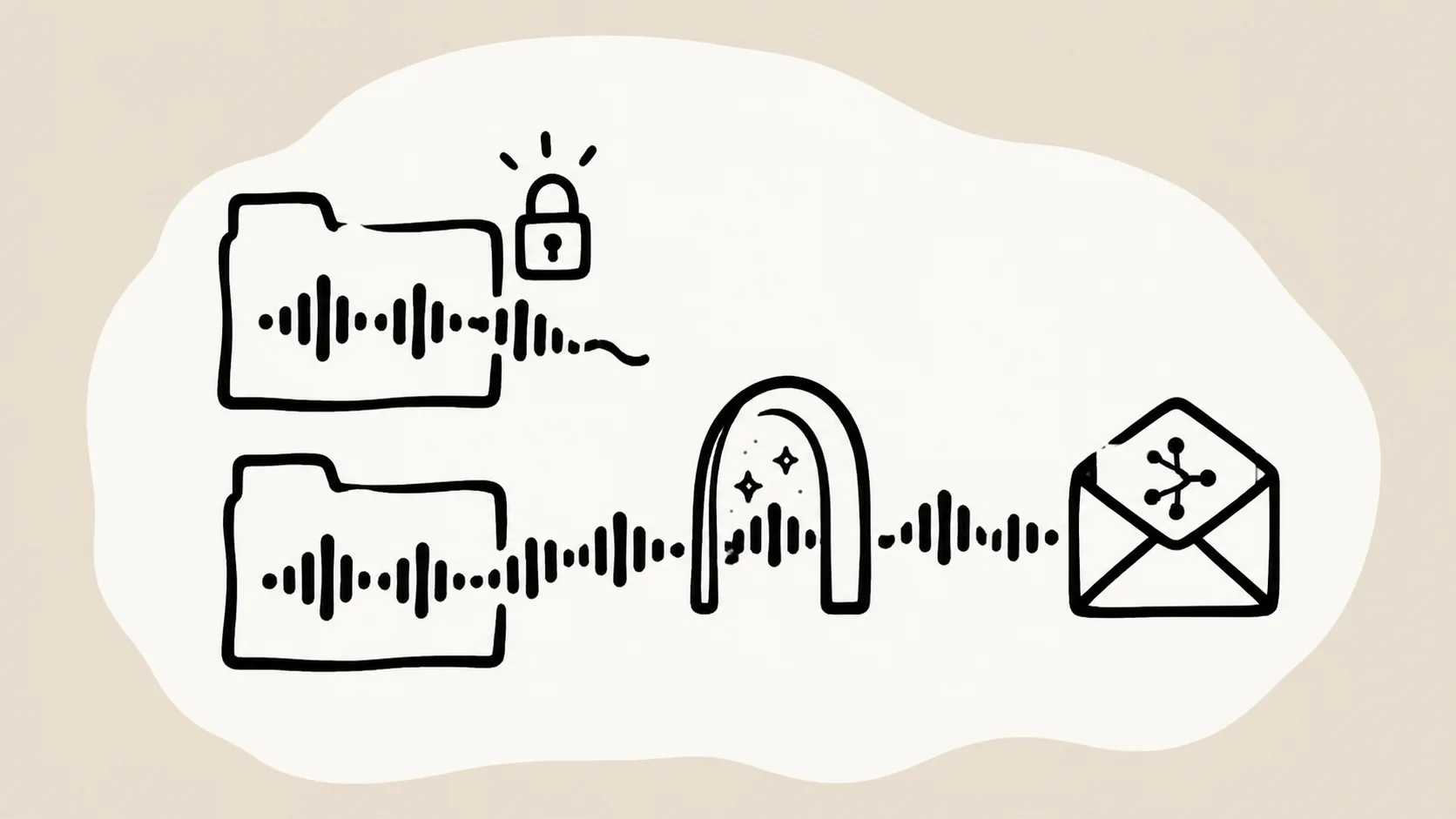
Upload one file
Choose the exported M4A rather than the private Voice Memos item. One file per run keeps the comparison understandable and avoids implying that the service will assemble multiple memos. If the memo is longer than the default limit, keep the full source and make a suitable review copy without overwriting the original.
Before uploading, remove nothing from the source just to make the result look cleaner. Trim a copy only when the message itself should be shorter. Cleanup and editing are different decisions, and keeping them separate makes it easier to spot an accidental omission.
Compare Original and Cleaned playback
Listen to the first quiet pause, the key sentence, and the ending. Check whether steady noise recedes while the speaker remains present. Pay attention to sibilants, breaths, and word endings because an overly processed memo can sound smooth at first and reveal a metallic or watery edge on a second listen.
If the cleaned version is less natural, keep the original. The metallic voice guide explains why another aggressive pass is not a reliable recovery method. A useful cleanup is one you can defend to the person receiving the memo, not just one that sounds quieter in isolation.
Download the cleaned MP3 after a natural-voice check
When the A/B comparison favors the cleaned copy, download the MP3 and play that downloaded file outside the preview. Check the name, duration, beginning, and end. Then share the reviewed file through the channel your recipient expects, while keeping the original M4A available for reference.
If the memo is evidence, an interview note, or a sensitive client instruction, avoid making the cleaned copy your only record. The responsible workflow is source first, trial second, review third, and sharing last.
Match the fix to the sound you hear
Steady hiss, hum, and room tone are the best fit for a background-noise pass. A recognizable repeat is echo; a blended tail around syllables is reverb. Wind and handling noise are bursts, while clipping and overlapping speech involve information that may already be damaged or mixed together. The right diagnosis prevents a simple memo from becoming a misleading before-and-after.
For an acoustic problem, start with the echo versus reverb diagnostic. If a previous process made the voice metallic, return to the original before trying anything else. SimpleClean does not provide separate echo or reverb controls and does not promise to restore every damaged recording.
A pre-sharing checklist
The last step is not cosmetic. It makes sure the file in the message is the file you actually approved. Listen on the device you will use to send it, then verify what the recipient will download. Short recordings can be checked end to end, so take advantage of that rather than relying on a single sentence.
- The memo title, duration, and speaker are the intended ones.
- The original Voice Memo and exported M4A remain stored safely.
- The cleaned MP3 makes the steady background less distracting.
- Important words, consonants, pauses, and names remain intelligible.
- The recipient knows the attachment is a cleaned copy when that context matters.
Frequently asked questions
How do I export an iPhone Voice Memo as M4A?
In Voice Memos, select the recording, use the current share action, and choose Files to save a copy. Voice Memos exports .m4a by default; if Rendered or Editable is offered, choose the intended option, then confirm the title, duration, and actual file before sharing.
Does Enhance Recording change the shared file?
No playback option by itself changes the underlying recording. When sharing, choose Rendered to include effects or Editable to preserve adjustable effects or layers, then verify the exported file in Files before sending it.
Can SimpleClean reduce hiss in a Voice Memo?
It can be a reasonable test when the M4A contains steady hiss, hum, or room tone. SimpleClean processes one file at a time, shows Original and Cleaned playback, and returns cleaned audio as MP3. Keep the original and use the comparison to decide whether the change helps.
Can it fix echo in an iPhone recording?
Echo and reverb are room-reflection problems, not the same as a steady noise bed. SimpleClean does not provide separate echo or reverb controls, so diagnose the sound first. A memo with both echo and hum may benefit only from addressing the steady part.
Can I upload an M4A file?
Yes. M4A is a supported audio input, subject to the default 500 MB and 15-minute limit. The cleaned download is MP3, so retain the exported M4A and the original Voice Memo when you need to preserve the source.
Why is the cleaned download an MP3?
SimpleClean delivers cleaned audio as MP3. That is the product's output format for audio, so review the downloaded file before sharing and keep the original M4A separately. Do not describe the MP3 as a replacement for the source recording.
Should I keep the original Voice Memo?
Yes. Keep the original until the shared copy is accepted and no further edit is needed. It gives you a reversible path if the cleaned voice sounds less natural or if you later discover that the main problem was echo, wind, clipping, or an incorrect take.
Sources and Further Reading
These official or primary references support the platform, format, and audio-production claims in this guide. Product behavior and platform interfaces can change, so the linked documentation remains the authority.
- Make a recording in Voice Memos on iPhone — Apple Support. Documents current recording options and device or software caveats for Voice Memos features.
- Play back a recording in Voice Memos on iPhone — Apple Support. Supports the distinction between playback enhancement and the underlying recording file.
- Export a Voice Memos recording to Files on iPhone — Apple Support. Documents that Voice Memos exports .m4a by default and that sharing can offer Rendered or Editable choices; depending on the selection, effects may be included or adjustable effects/layers may be retained.
- Share a recording in Voice Memos on iPhone — Apple Support. Supports the current sharing and export path used to create a file for review.
Compare before you commit
Keep the original, export the M4A, choose Rendered or Editable for the copy you intend to share, and verify that file in Files. Then upload one file to SimpleClean and compare Original with Cleaned. Keep the source untouched when the problem is echo, reverb, wind, clipping, or overlap rather than steady noise.
Clean an iPhone Voice Memo