How to Clean a Lecture Recording: Projector Fans, Air Conditioning and the 15-Minute Limit
Oct 8, 2026·Updated Oct 8, 2026·SimpleClean Team
The short answer
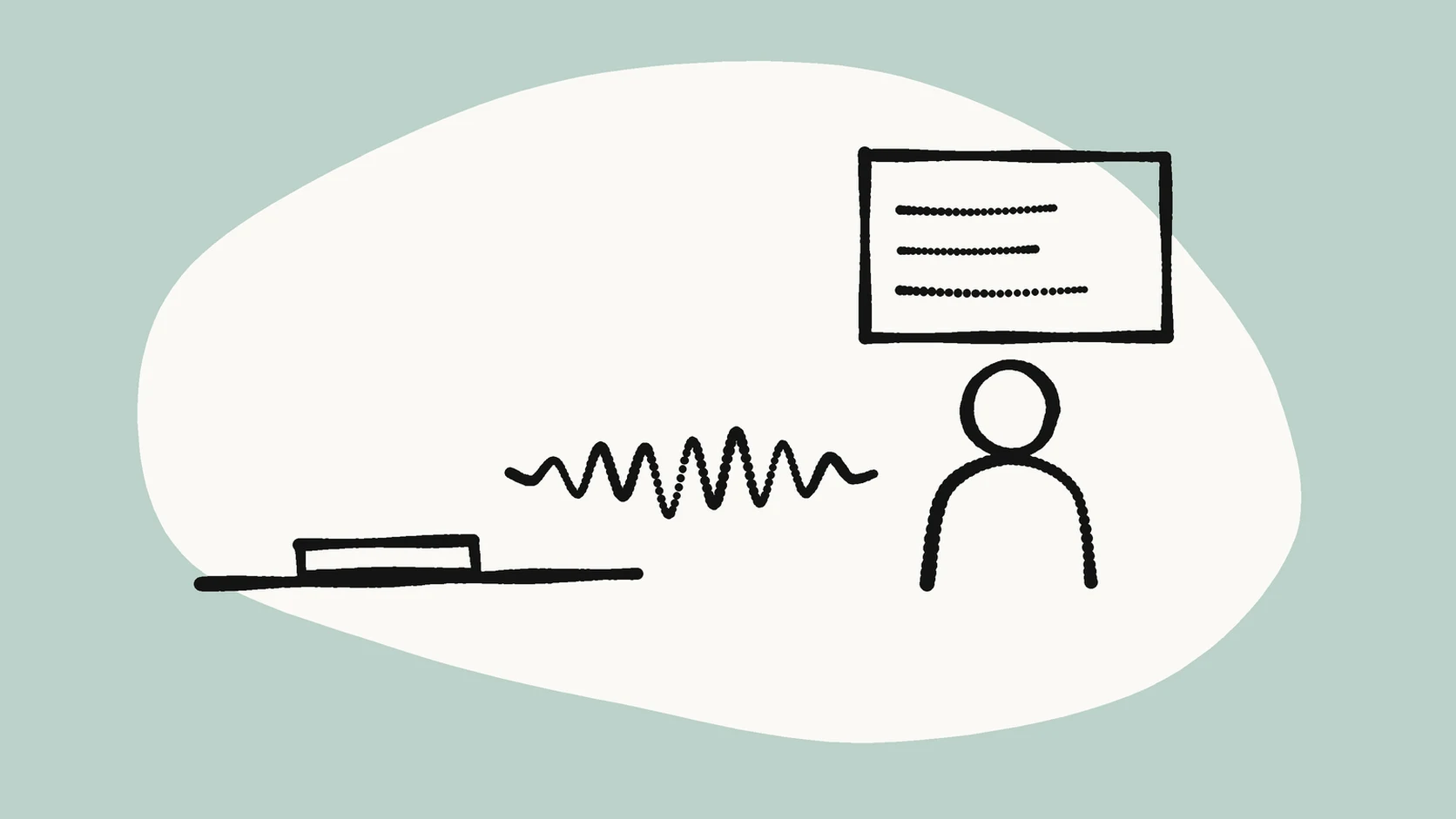
Listen to a quiet moment first. Steady projector, air-conditioning or hum noise is a good fit for SimpleClean; a distant, echoey voice is not. Split the lecture into parts of about 14 minutes, clean the noisiest part first, compare Original and Cleaned on headphones, and keep the full original file.
If the recording has steady hiss, hum, fan noise, or room tone, Clean a lecture part at SimpleClean and compare Original with Cleaned playback before downloading.
The short answer for lecture recordings
Lecture recordings usually carry two kinds of trouble. One is steady noise from projector fans, air conditioning and building hum. SimpleClean is built to reduce that kind of sound. The other is distance and echo from a big room. No noise tool can undo that, because it is part of how the voice reached the phone.
This guide shows how to tell the two apart, how to split a long lecture so it fits the 15-minute file limit, and how to judge the Original and Cleaned comparison. It also covers what it costs in minutes and when to stop.
It is written for students who recorded a class on a phone, teachers who recorded their own session for absent students, and anyone with a long talk recorded in a room full of machines.
Step 1: Listen for what kind of noise it is
Put on headphones and play a quiet moment. The start, before the lecturer speaks, works well. So does a pause between slides. Then sort what you hear into one of these groups:
- A constant drone or whoosh that never changes: projector fan, air conditioning, heating. This is steady noise.
- A low hum that sits under everything: often electrical hum from mains-powered equipment or nearby wiring. This is also steady.
- A hollow, roomy sound on the voice itself: echo and reverb from the hall.
- Sharp bursts: coughs, chairs, doors, laptop keys.
Steady noise or room sound? A quick check
Only the first two groups are steady background noise. The Audio Noise Reference has a table that sorts common noise types into reducible ones and ones that are not a steady-noise job.
If the main problem is a hollow sound, read echo vs. reverb first. Noise reduction will not fix it, and pushing harder usually makes the voice worse.
Here is an example. Leo's recording has a steady air-conditioning whoosh, and the lecturer sounds a bit distant. The whoosh is a good fit for cleanup. The distance is not. So he sets his expectations before he starts: clearer, not studio quality.
Step 2: Split the lecture into parts
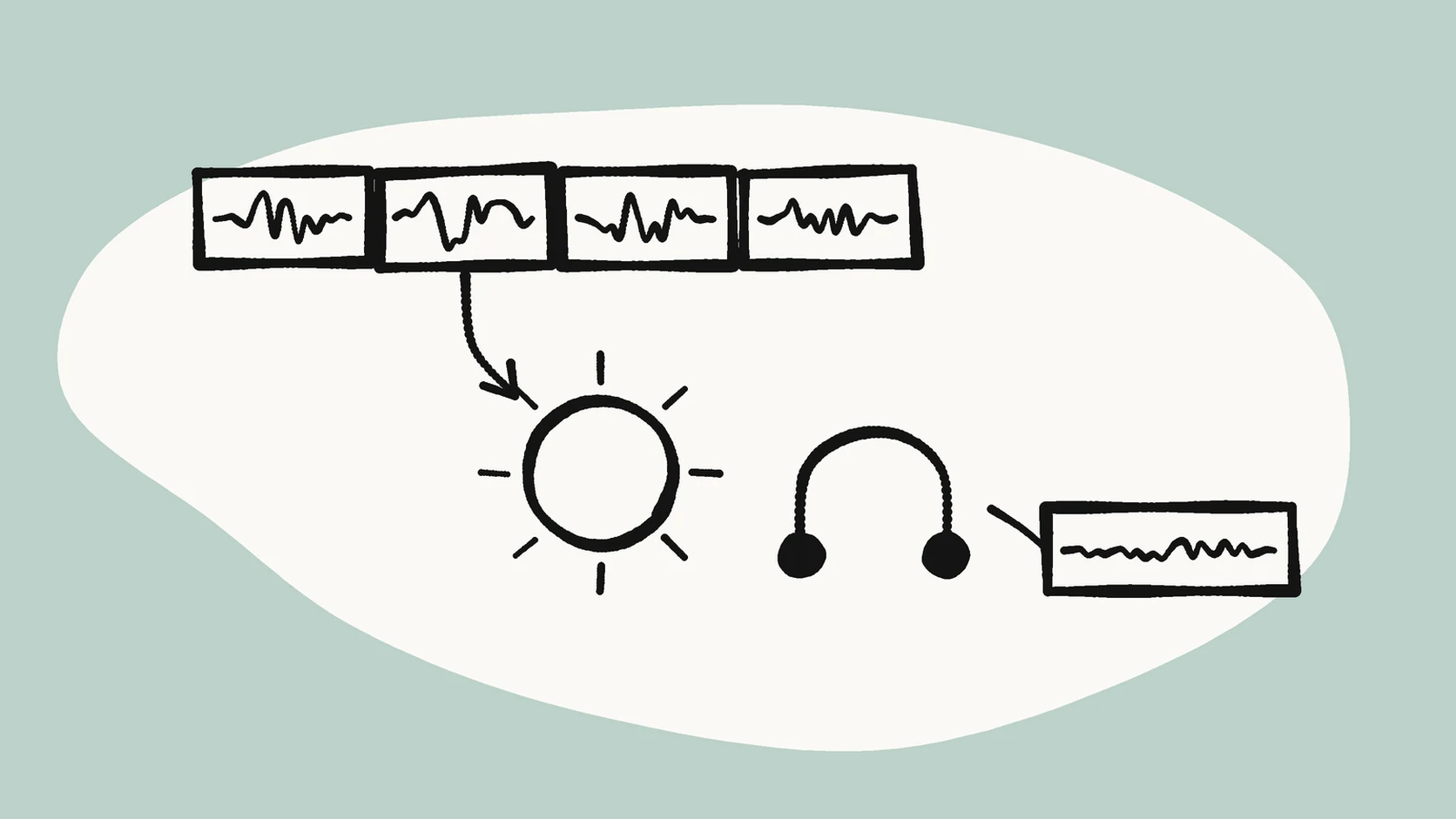
SimpleClean takes one file per run, up to 500 MB and 15 minutes by default. A 50-minute lecture therefore needs four parts. Split at natural breaks if you can, such as a pause between topics, so no sentence is cut in half.
There are two simple, free ways to do it:
- Audacity: add a label at each split point, then use File > Export Audio and choose to export multiple files split by labels. The Audacity manual calls this a convenient way to export separate files from one long recording.
- FFmpeg on the command line: the segment option cuts a file into equal parts without re-encoding, for example ffmpeg -i lecture.m4a -f segment -segment_time 840 -c copy lecture-part%02d.m4a. The FFmpeg formats documentation explains the options.
A worked example: a 50-minute lecture
Why 840 seconds? It is 14 minutes, which leaves a one-minute margin under the limit. The FFmpeg documentation notes that cut points may not land exactly on the requested time when streams are copied, so a margin keeps every part safely inside 15 minutes.
With 14-minute parts, a 50-minute lecture splits like this. Keep the full original file untouched. You will want it later.
| Part | Covers | Length |
|---|---|---|
| Part 1 | 0:00 to 14:00 | 14 minutes |
| Part 2 | 14:00 to 28:00 | 14 minutes |
| Part 3 | 28:00 to 42:00 | 14 minutes |
| Part 4 | 42:00 to 50:00 | 8 minutes |
Step 3: Clean one part first
Do not process the whole lecture at once. Start with the part where the noise is worst, because it shows you the best and worst case in one go.
- Upload that part at SimpleClean.
- Wait for processing to finish.
- Play Original and Cleaned in the browser, on headphones.
- Listen to the lecturer's voice, not just the background.
Step 4: Judge the comparison honestly
A good result sounds like the same room with the machine turned down. It should not sound like a different person in a different place. Check three things while you listen:
- Is the drone lower? That is the goal.
- Does the voice still sound natural? If it sounds watery, metallic or thin, the cleanup went too far for this file. The guide on fixing a metallic voice after noise reduction explains why this happens.
- Are quiet words still there? Soft endings of sentences should survive.
When the original is the better file
If the cleaned version sounds worse, keep the original. That is a normal outcome, not a failure. A recording with mostly echo and only a little fan noise often gains less than it loses.
Compare the two at the same volume. A louder file tends to sound better even when it is not, so turn your player to one level and leave it there for both.
Step 5: Process the rest and put it back together
If the test part sounds better, clean the other parts the same way. Cleaned audio comes back as MP3, and cleaned video comes back as MP4.
Then join the parts in order. In Audacity, import all cleaned parts and line them up end to end on one track. Listen across each join for a skip or click.
Example: Leo cleans four parts. At one join he hears a tiny jump. He moves the clip a few milliseconds in Audacity and the jump is gone.
Name the files so they stay in order
Four parts, two versions each, plus the original makes nine files for one lecture. Without a naming habit they get mixed up fast. Use one pattern and stick to it, for example the course, the date, the part number and the version.
Something like bio101-2026-10-06-part02-original.m4a and bio101-2026-10-06-part02-cleaned.mp3 sorts correctly in any folder. Put the untouched full recording in its own folder so you never overwrite it by accident.
What it costs in minutes
Every signed-in account gets a one-time starter grant of 30 cleanup minutes. It never expires and does not reset monthly. Whole minutes for each file's length are deducted when you unlock the cleaned download.
So a 50-minute lecture uses more than the starter grant. A sensible order is to test one 14-minute part with the starter minutes, listen, and only then decide about the rest. Current plans are shown in the app at checkout, and the terms cover billing and refunds.
What cleanup cannot fix in a lecture
Be realistic about these problems. A steady-noise pass does not touch them, and heavy processing can make the voice harder to follow:
- Distance: a far-away voice stays far away.
- Echo and reverb: a big hall's hollow sound is not steady noise.
- Overlapping talk: students chatting near the phone.
- Clipping: distorted, crackly peaks from a source that was too loud.
Next time: three recording habits that help most
If these problems dominate, the best fix is a better recording next time, or the official lecture capture if your school has one. Three habits make the biggest difference. Sit closer to the lecturer than to the projector. Keep the phone away from air vents and the projector's fan. Record a 30-second test at the start and play it back before the class gets going.
Always ask before you record, and follow your school's rules. A cleaner recording saves far more time than any cleanup step afterwards.
Privacy note
Files you upload are processed in the cloud. Uploaded sources and cleaned outputs are normally deleted within 7 days, and you can request earlier deletion. The privacy policy has the details. If the lecture contains other students' voices, keep the files for your own study.
Frequently asked questions
Why not just turn the cleanup up to maximum?
Too much reduction makes voices sound unnatural, and quiet words can disappear. A lighter result that still sounds real is easier to study from.
Can I clean a lecture video, not just audio?
Yes. MP4, MOV, MKV, WebM and AVI are accepted, and cleaned video comes back as MP4. The same one-file, 500 MB and 15-minute default limits apply.
Why split at 14 minutes instead of exactly 15?
Cut points from a quick split may land a little after the requested time. A 14-minute target keeps every part safely under the 15-minute default limit.
Will cleaning help a transcript of the lecture?
Lowering steady noise can make speech easier to follow. It does not guarantee a better transcript, and it cannot fix distance or echo.
Do I need to join the parts back together?
Only if you want one file. Many students keep the cleaned parts separate and name them by topic, which also makes it easier to find one section later.
Sources and Further Reading
These official or primary references support the platform, format, and audio-production claims in this guide. Product behavior and platform interfaces can change, so the linked documentation remains the authority.
- Exporting multiple audio files — Audacity Manual. Supports exporting one file per label from a long recording via File > Export Audio with multiple files split by labels.
- FFmpeg Formats Documentation: segment — FFmpeg. Supports the segment muxer, the segment_time option, and the note that split points may not be exact without forced key frames.
- Mains hum — Wikipedia. Supports the description of electrical hum as a steady sound tied to mains power that gets into audio from equipment and nearby wiring.
- Reverberation — Wikipedia. Supports the description of reverberation as sound that persists after it is produced because it reflects off surfaces in a room.
Compare before you commit
If your lecture has a steady fan, air-conditioning or hum sound, upload one part of about 14 minutes at SimpleClean, compare Original with Cleaned on headphones, and keep the full recording untouched.
Clean a lecture part at SimpleClean