How to Split a Long Recording Into 15-Minute Pieces Without Cutting Off a Word
Oct 22, 2026·Updated Oct 22, 2026·SimpleClean Team
The short answer
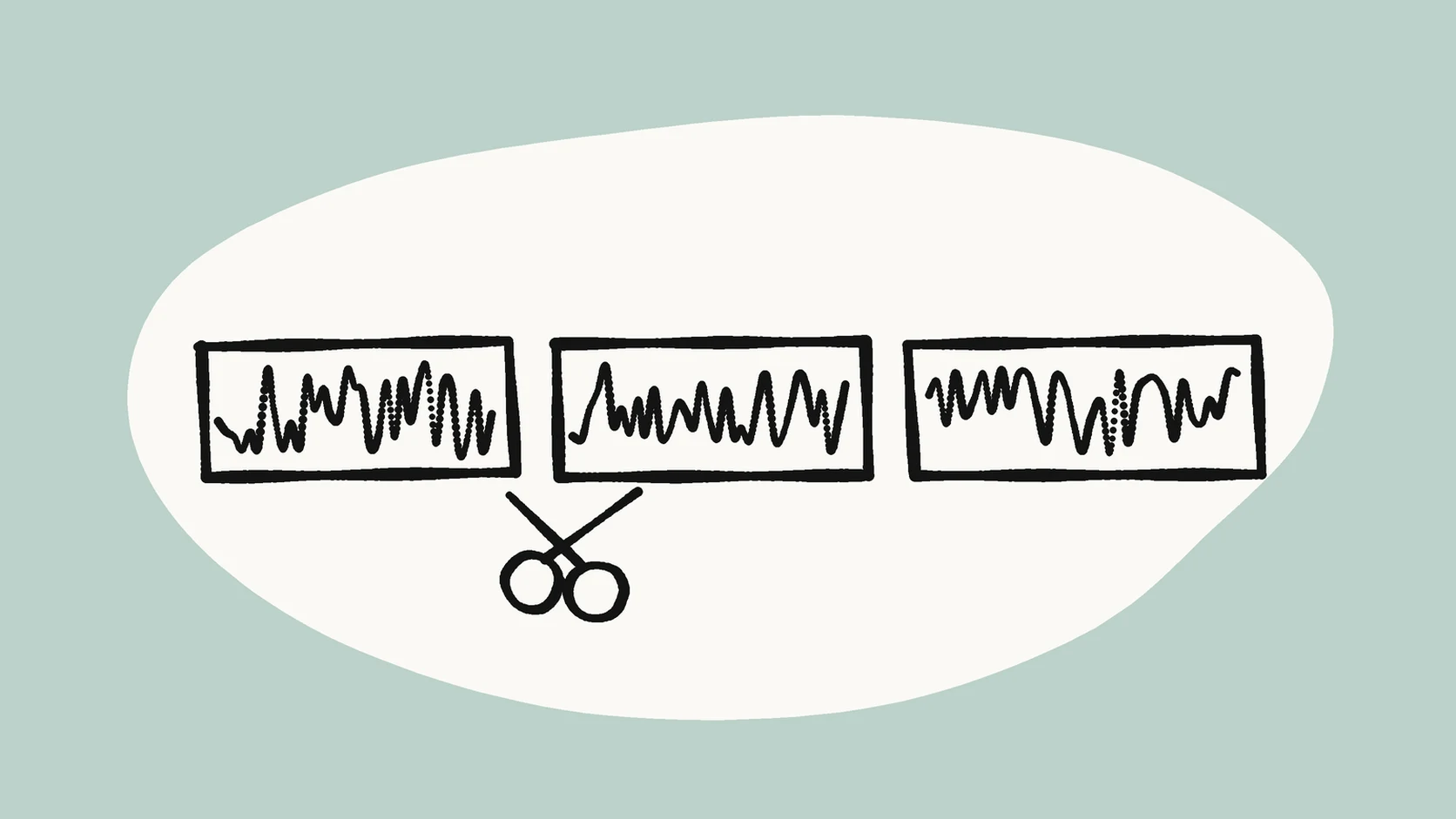
SimpleClean processes one file at a time, up to 500 MB and 15 minutes. For a longer interview, lecture or tape transfer, split a copy into pieces of about 14 minutes, cutting in pauses so no word is cut off. Use Audacity labels for careful cuts, or FFmpeg for a fast timed split.
If the recording has steady hiss, hum, fan noise, or room tone, Clean each piece and compare Original vs Cleaned at SimpleClean and compare Original with Cleaned playback before downloading.
Why a long recording needs splitting first
SimpleClean accepts one file per run, with a limit of 500 MB and 15 minutes per file. That covers most voice memos, short interviews and video clips. It does not cover a 45-minute cassette side, an hour-long interview or a full lecture.
The answer is not to give up on the long file. It is to cut a copy into pieces of 15 minutes or less, clean each piece, and keep or join the results. The only skill involved is choosing good places to cut.
This guide shows two ways to do that, how to name and check the pieces, and how to spend cleanup minutes on the pieces that actually need help.
Why split at pauses, not at exact times
A cut at exactly 15:00 can land in the middle of a word. The first file ends with "intro-" and the next starts with "-duction." That is annoying to listen to and hard to join cleanly later.
A cut in a pause is invisible. Most speech has a short silence every few seconds, so you rarely need to move a cut more than a few seconds from the target.
Example: your interview is 41 minutes long. Instead of cutting at 15:00 and 30:00, you cut at 14:52, in a pause after a question, and at 29:47, in a breath before a new answer. Every piece is under 15 minutes, and no word is split.
Before you cut: three quick checks
Two minutes of planning saves a lot of re-exporting. Do these checks before you open any tool.
- Check the total length. Divide it by 14 and round up to get the number of pieces. A 41-minute file needs 3 pieces; a 62-minute file needs 5.
- Make a copy and work only on the copy. The original stays untouched in its own folder.
- Skim the file and note where the sound changes, such as a fan switching on at minute 20 or a new room after a break. A cut near that change keeps each piece consistent.
Method 1: Pause-aware split in Audacity
Audacity is a free audio editor that runs on your own computer. It can split one recording into several files using labels. A label is just a marker with a name that you place on the timeline. This is the recommended method when the recording is speech.
Step by step
Open the copy in Audacity and work through these steps:
- Find the first cut point. Click near 14:00 on the timeline, then listen forward until you hear a pause. Click in the middle of that pause.
- Add a label. Use Add Label at Selection (the shortcut is Ctrl + B), type a name such as "part-02," and press Enter. The Audacity label track guide explains labels in more detail.
- Repeat roughly every 14 minutes until the end of the file.
- Add a label at the very start named "part-01," so the first piece gets a name too.
- Export. Open File > Export Audio and choose to export multiple files, split based on labels. The Export Multiple page describes the options. WAV keeps full quality; MP3 makes smaller files.
When there is no clear pause
Some recordings have long stretches with no silence, such as music under speech or two people talking over each other. In that case, cut in the quietest moment you can find. A soft breath is a better cut point than a loud word.
Aim for pieces of about 14 minutes. That leaves a little safety margin under the 15-minute limit, so you can move a cut forward or back to find a better pause.
Method 2: Fast timed split with FFmpeg
FFmpeg is a free command-line tool for audio and video. Its segment feature cuts a file into equal-length pieces. This command makes 14-minute pieces (840 seconds) from a WAV file without re-encoding: ffmpeg -i interview.wav -f segment -segment_time 840 -c copy part-%02d.wav
The output files are named part-00.wav, part-01.wav and so on.
When a timed split is good enough
FFmpeg cuts on time, not on pauses, so a word can be split. The FFmpeg format documentation also notes that splitting "may not be accurate" in some cases. This matters most for video, where each new segment starts at a key frame.
Use this method when speed matters more than clean edges: a long background recording with lots of silence, a rough archive copy, or a file you will only search and never publish. For anything you plan to share, the pause-aware method is worth the extra minutes.
Which method should you use?
Both methods are free. The difference is how much care goes into each cut.
| Audacity labels | FFmpeg segment | |
|---|---|---|
| Where it cuts | In pauses you choose | At fixed times |
| Time needed | A few minutes per hour of audio | Seconds |
| Risk of a cut word | Low | Possible at every cut |
| Best for | Interviews, lectures, family tapes you will share | Long rough recordings, archives, quick tests |
Name pieces so they stay in order
Use two-digit numbers in every file name, for example tape-side-a-01.wav, tape-side-a-02.wav and tape-side-a-03.wav.
Two digits keep "10" from sorting before "2" in most file browsers. Keep the same base name for every piece of one recording, so you never mix pieces from two sessions.
Clean each piece, then compare
Now run the pieces through SimpleClean one at a time.
- Upload the first piece and wait for processing.
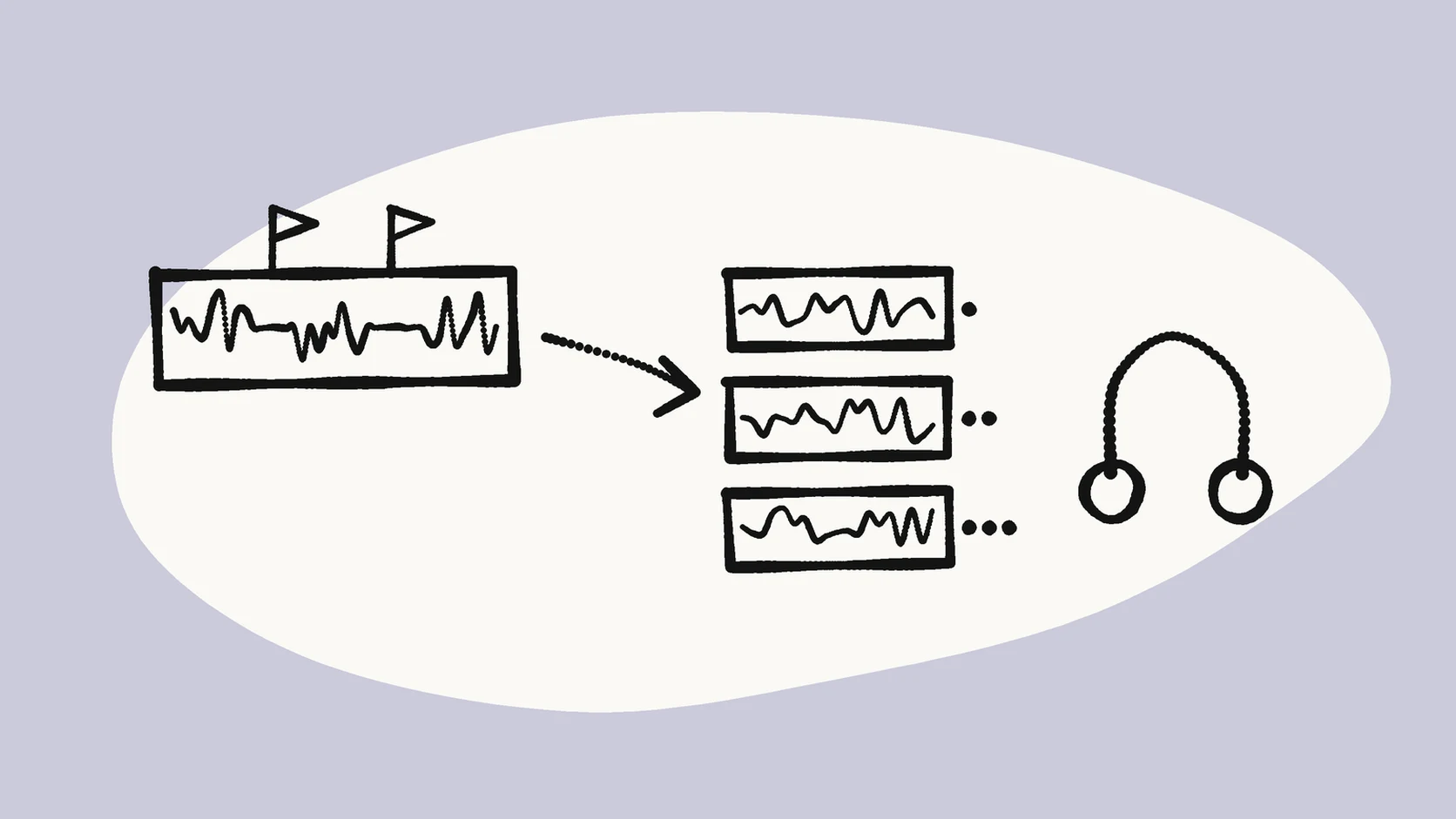
- Switch between Original and Cleaned playback on headphones.
- Download the cleaned MP3 only if it really sounds better.
- Repeat for the other pieces, comparing each one on its own.
Spend your starter minutes on the noisiest piece first
Test the noisiest piece first. If cleanup helps there, it will likely help the others. If it makes the voice sound watery or metallic, keep the originals and save your minutes. Our guide on when cleanup makes speech sound worse explains what to listen for.
Every signed-in account gets 30 starter minutes once. Whole minutes are deducted based on the source length when you unlock a cleaned download, so two 14-minute pieces use 28 of them. Pieces that sound fine in the comparison do not need a download at all.
Join the pieces again (optional)
Many people do not need to rejoin. Separate files are fine for transcription, archiving or sharing chapters. For lecture recordings, separate pieces can even be easier to review, as described in our guide to cleaning a lecture recording.
- In Audacity: import all cleaned files, place them end to end on one track, and export once.
- Listen to every join. Play five seconds on each side of each cut. Because you cut in pauses, the joins should be silent and smooth.
Common mistakes
Most problems with split recordings come from a few small habits.
- Cutting exactly at 15:00. Even a few extra milliseconds can push a piece over the limit. Stay near 14 minutes.
- Overwriting the original. Always split a copy.
- Treating pieces with different problems the same way. If part 3 has a hum that parts 1 and 2 do not, compare part 3 on its own.
- Forgetting the file size. Fifteen minutes of WAV is usually well under 500 MB, but very high sample rates add up. If a piece is too big, export it as FLAC or MP3 instead.
Frequently asked questions
Why not just upload the whole recording at once?
SimpleClean processes one file at a time, up to 500 MB and 15 minutes per file. Longer recordings need to be split into pieces first.
How long should each piece be?
About 14 minutes. That stays safely under the 15-minute limit and leaves room to move each cut to a nearby pause.
Will splitting change the sound quality?
Not if you export WAV from Audacity or use FFmpeg with -c copy on a WAV file. Both keep the original audio data. MP3 export makes smaller files at some quality cost.
Do I have to join the cleaned pieces afterwards?
No. Separate pieces work well for transcription, archives and chapters. Join them only if you need one continuous file, and listen to every join.
Which piece should I clean first?
The noisiest one. If the Original and Cleaned comparison does not sound better there, keep your originals and save your starter minutes.
Sources and Further Reading
These official or primary references support the platform, format, and audio-production claims in this guide. Product behavior and platform interfaces can change, so the linked documentation remains the authority.
- Label Tracks — Audacity Manual. Explains how labels mark points on the timeline, used here to mark pause-aware cut points.
- Export Multiple — Audacity Manual. Describes exporting several files split based on labels, the core of the pause-aware method.
- FFmpeg Formats Documentation: segment muxer — FFmpeg. Documents the segment muxer and segment_time option, and notes that splitting may not be accurate in some cases.
Compare before you commit
Split a copy of your long recording into pieces of about 14 minutes, then clean the noisiest piece first at SimpleClean and compare Original with Cleaned on headphones before you download.
Clean each piece and compare Original vs Cleaned at SimpleClean